Optional shared use
One collection on your own server
Shared Care Web mode lets several caregivers use the same collection through their browsers. Your own server on the local network stores Boxes, Animals, feedings, histories and pictures. The standalone Android and Web applications remain separate.
Set up the server and access
The operator installs TerraManager on a Raspberry Pi or comparable server, creates local accounts and provides a trusted HTTPS address. Daily use requires no cloud service or developer account.
Open it from the Android app
In Settings → Shared care, open the HTTPS address in an external browser. The local app data is neither transferred nor synchronized with the server collection automatically.
Work together
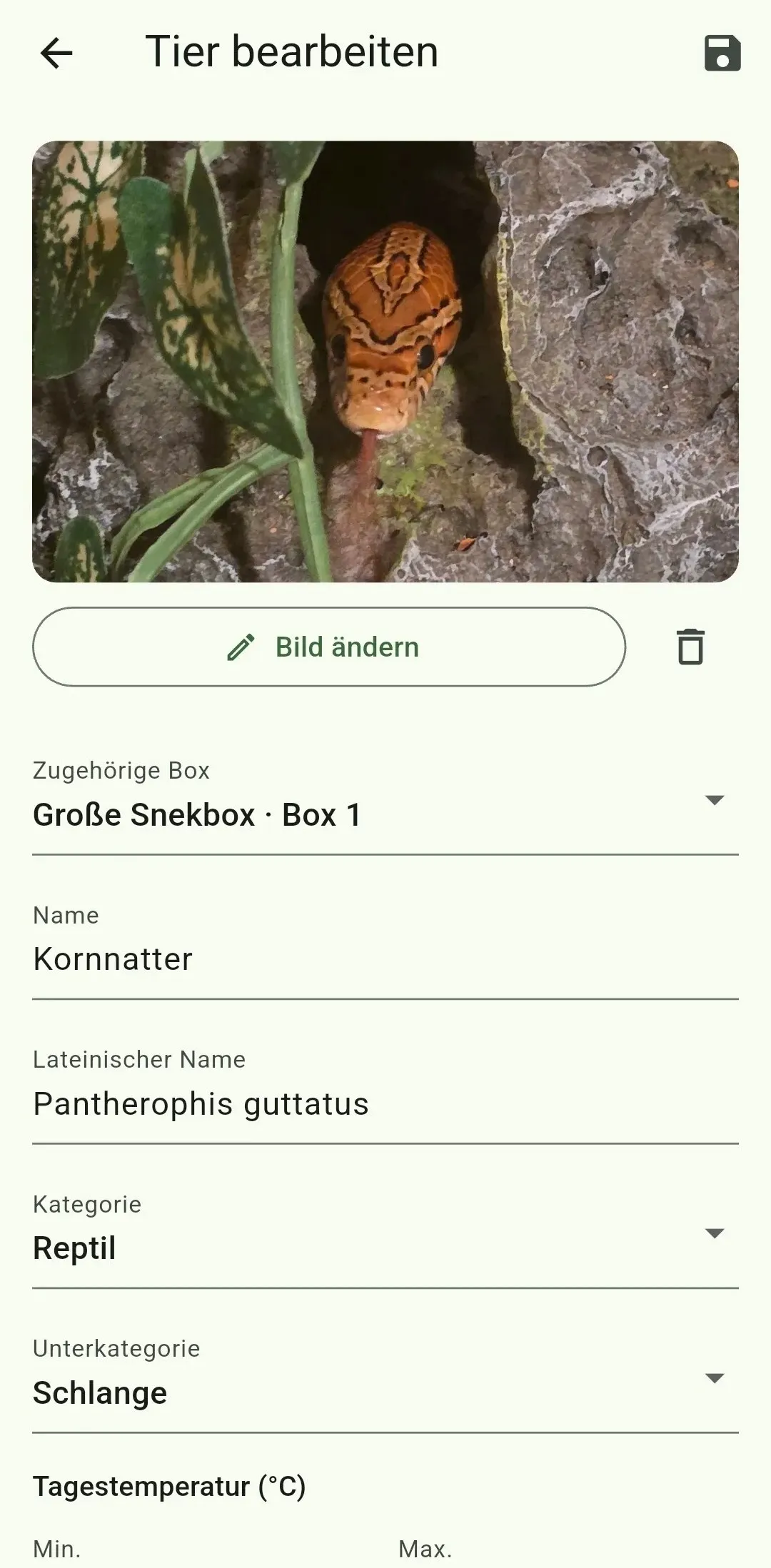
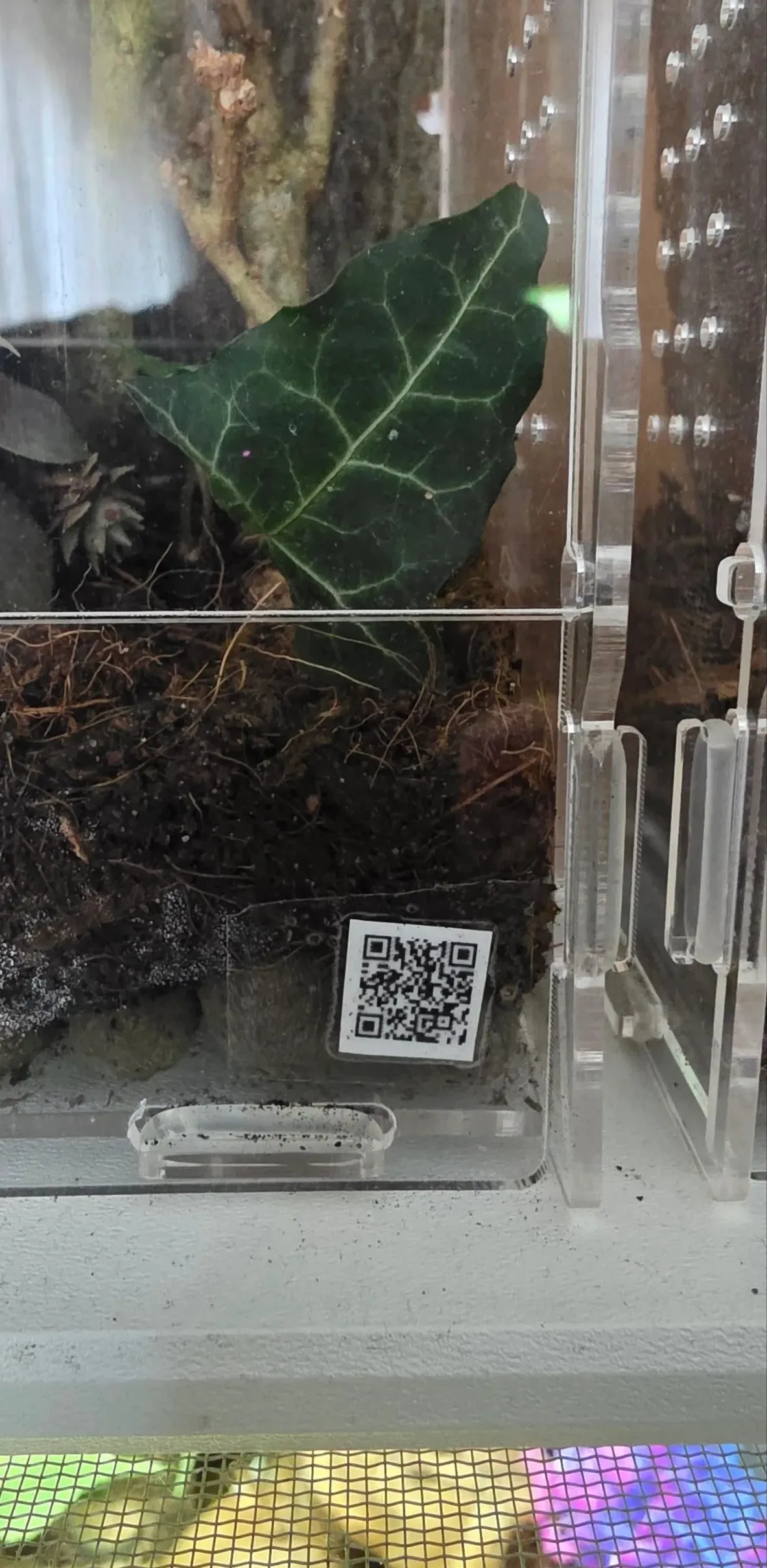
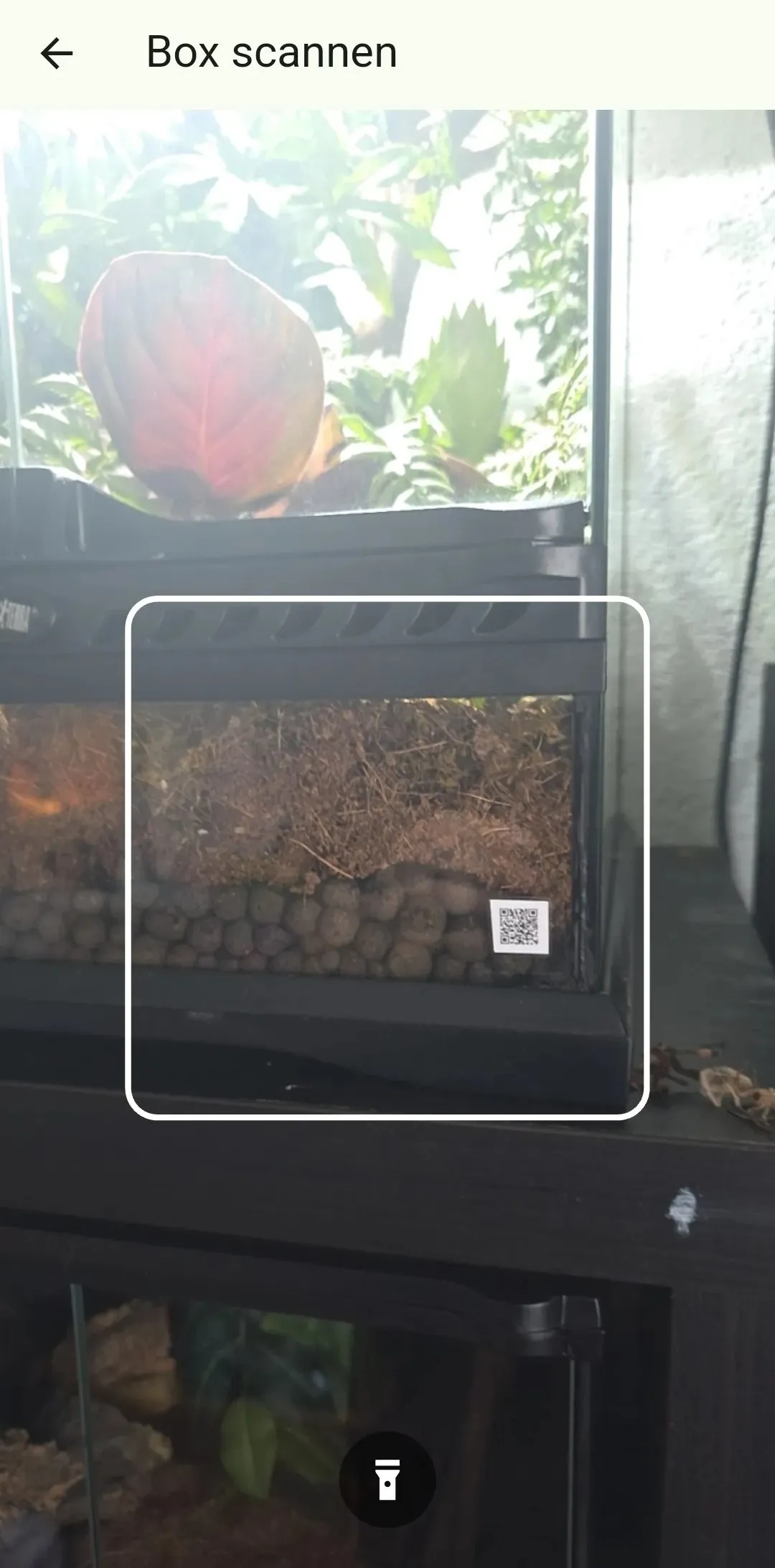
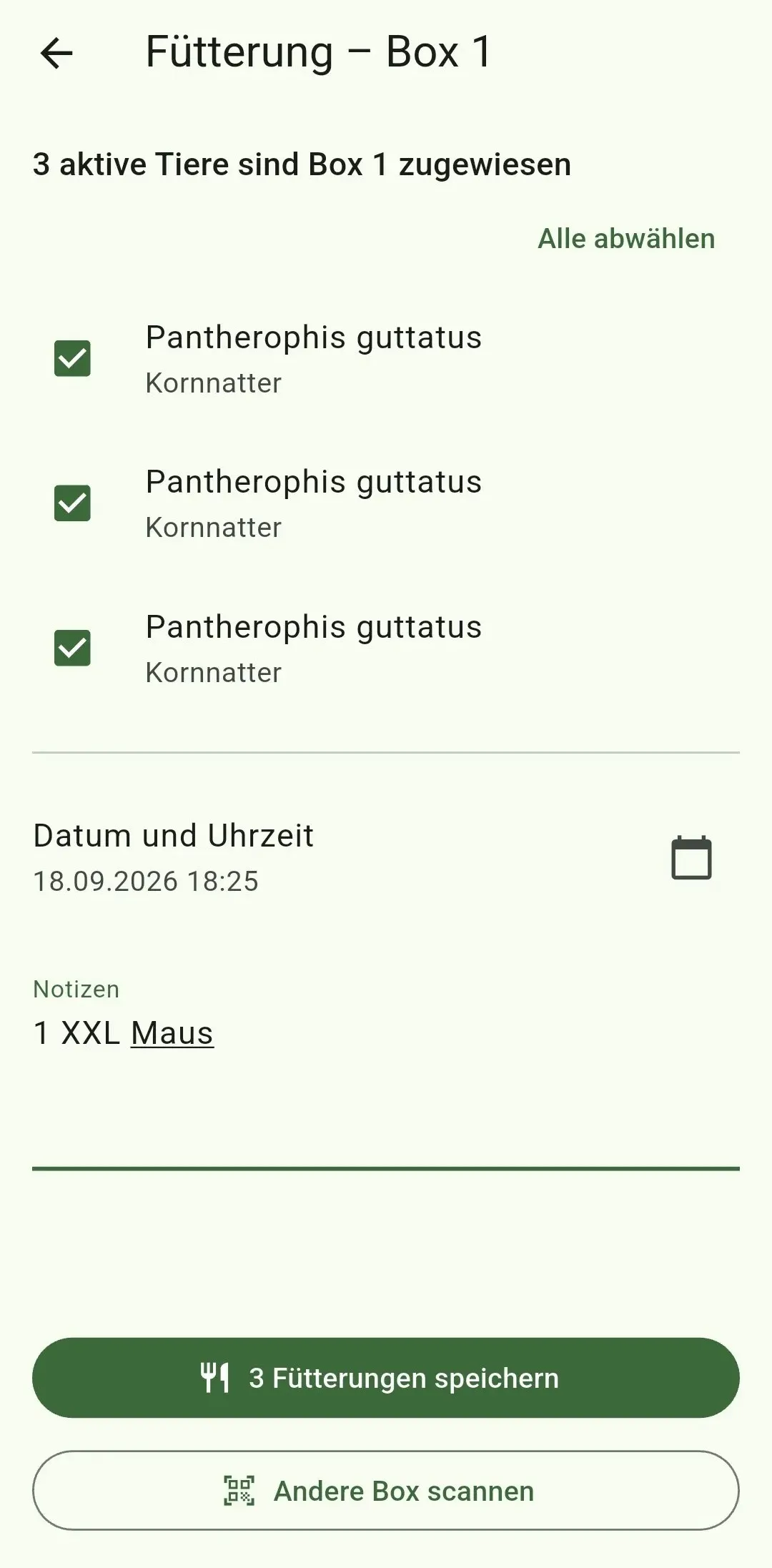
Sign in through the browser. Changes become visible on other signed-in devices, and simultaneous edits cannot silently overwrite one another. Box QR scanning requires trusted HTTPS and a supported mobile browser. Feeding Mode offers Choose Box when scanning is unavailable; Edit Animal retains the ordinary Box selector for reassignment.
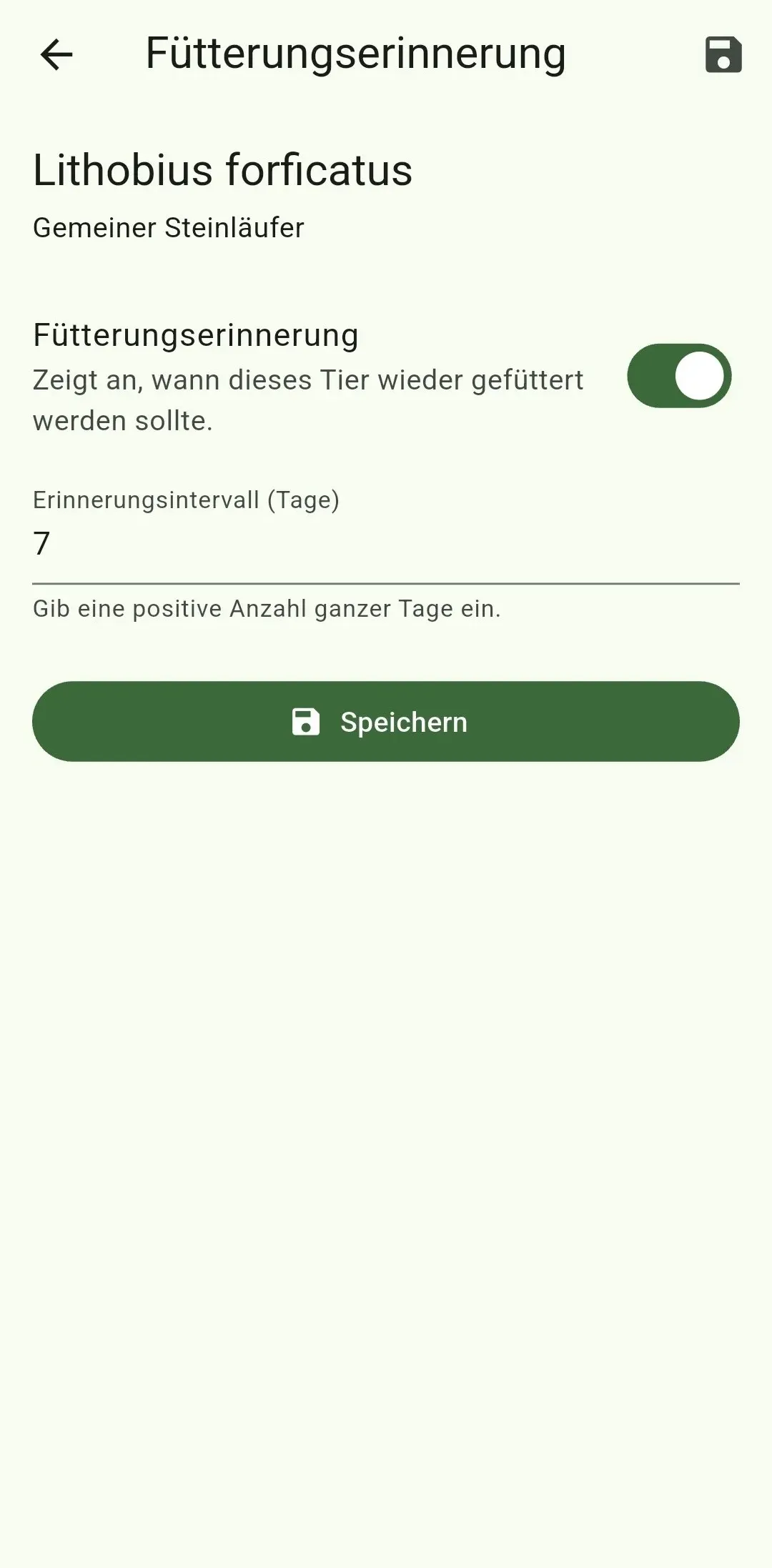
Use quick actions and reminders
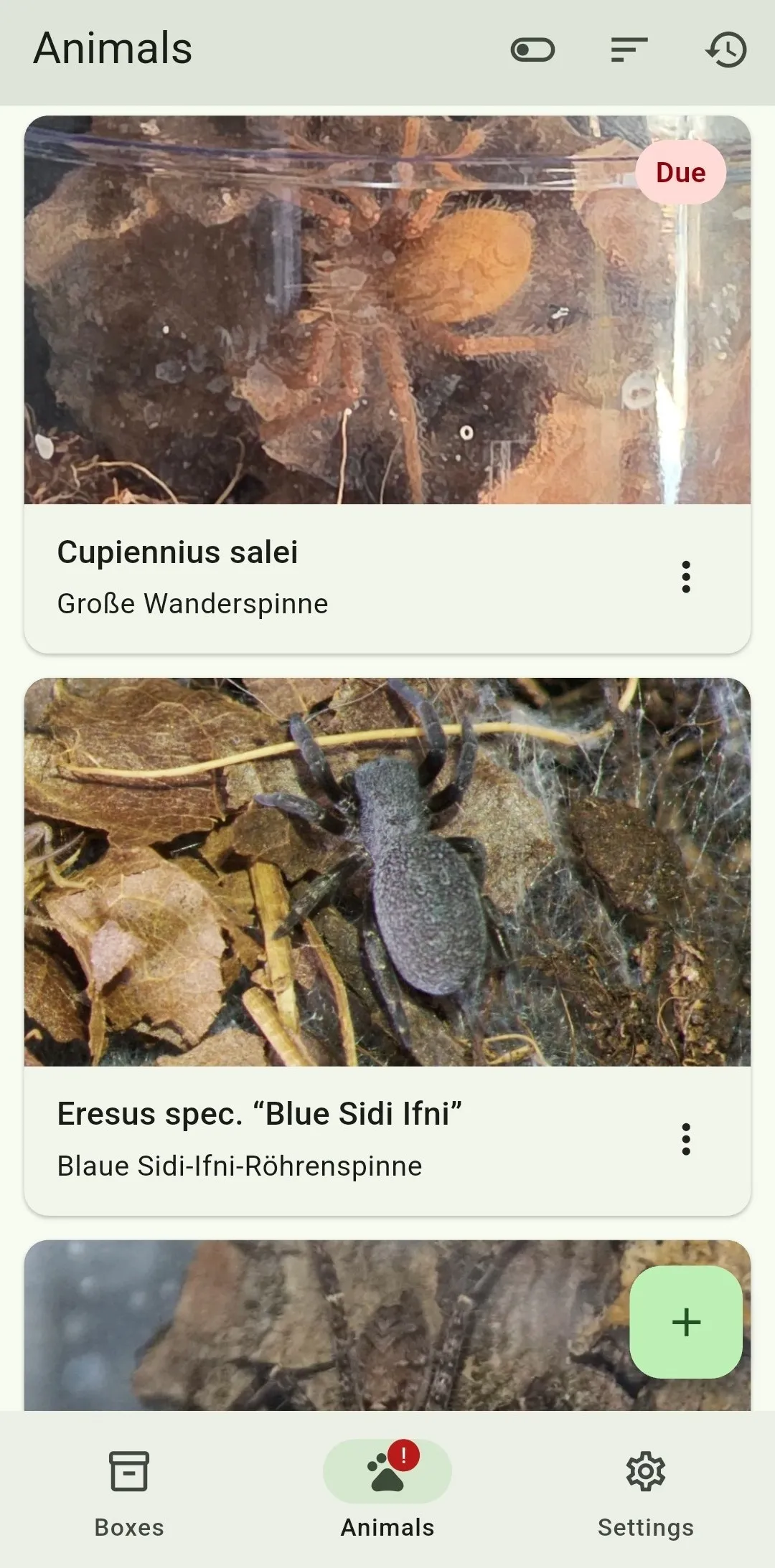
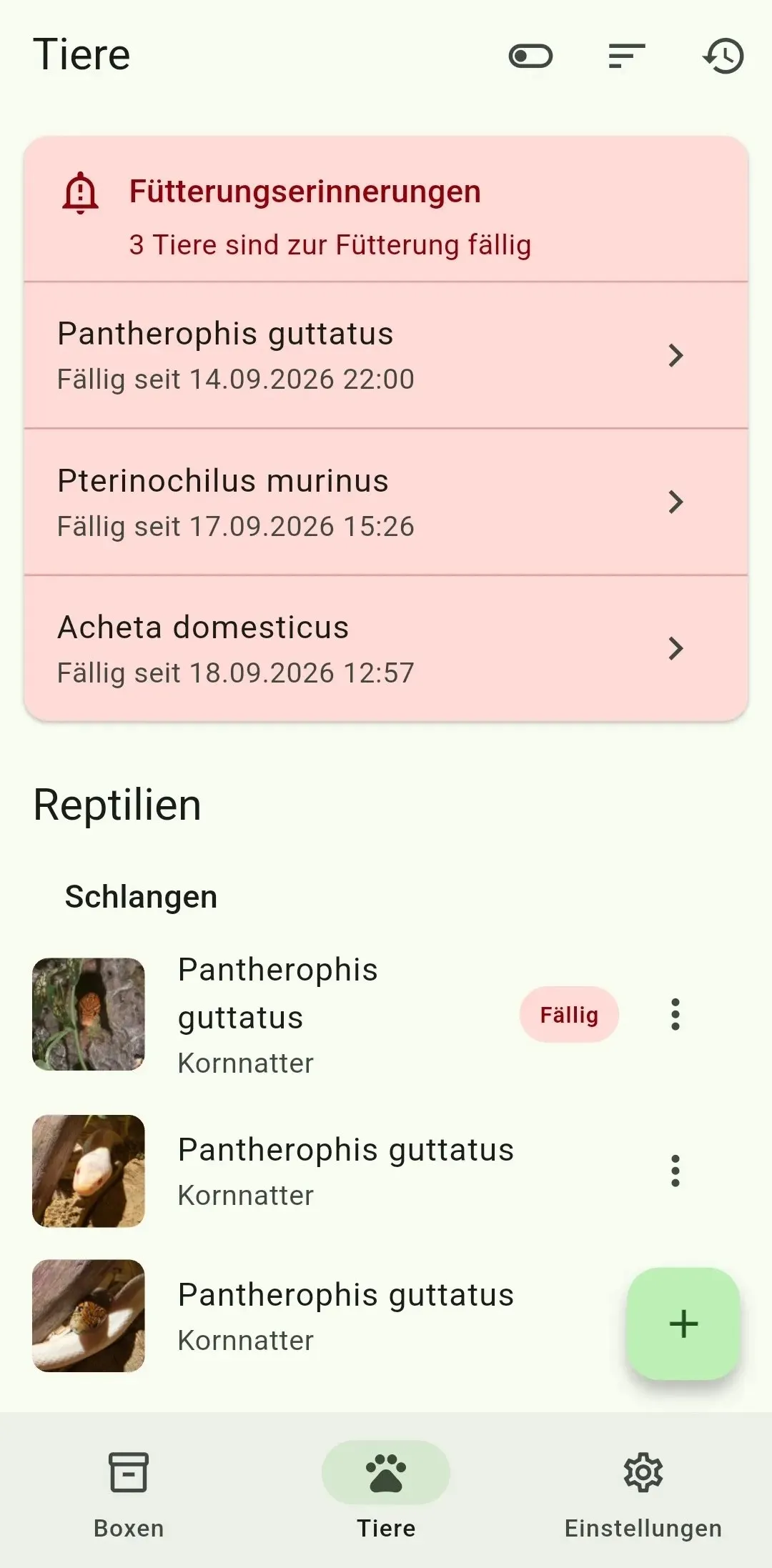
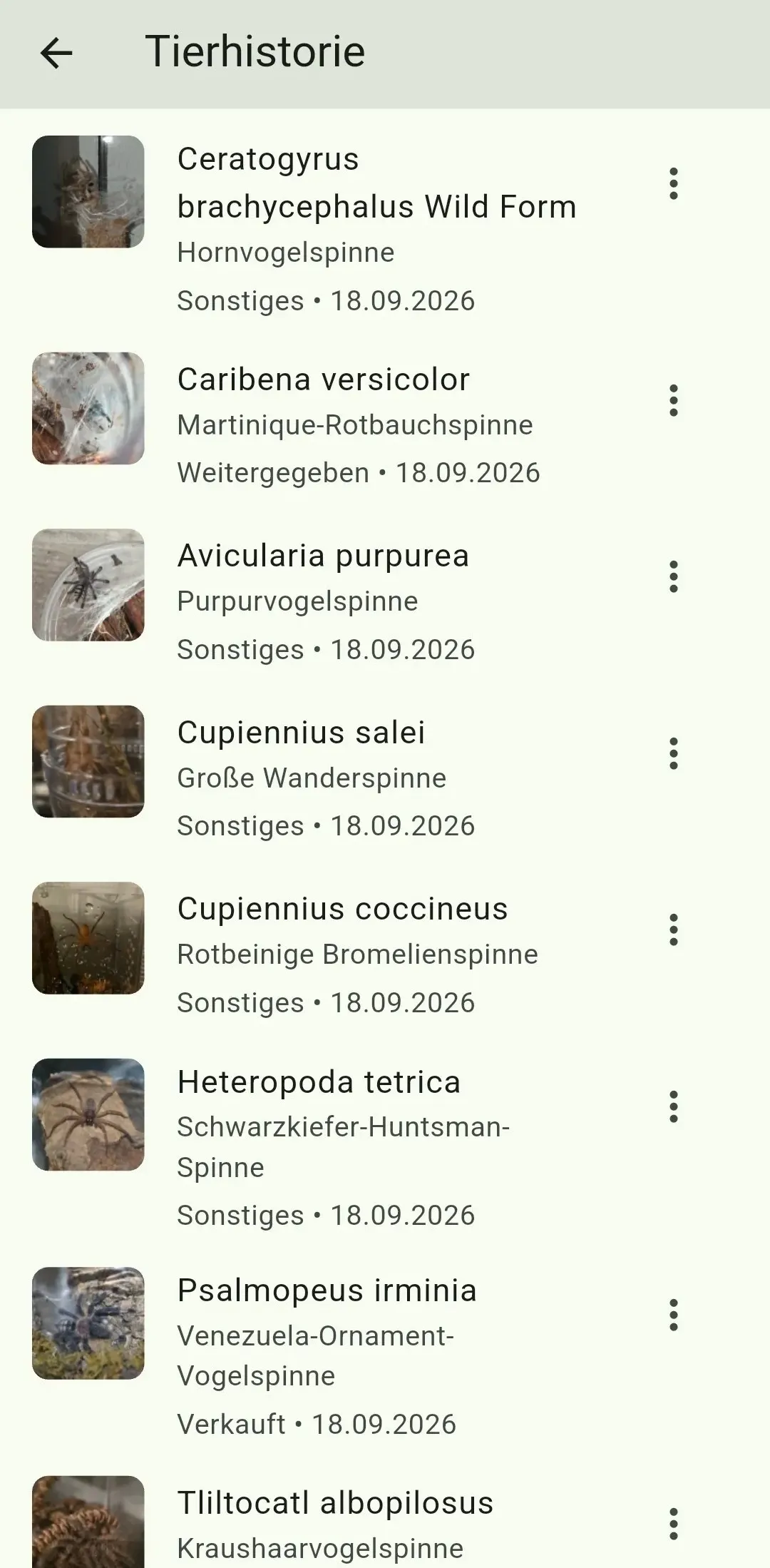
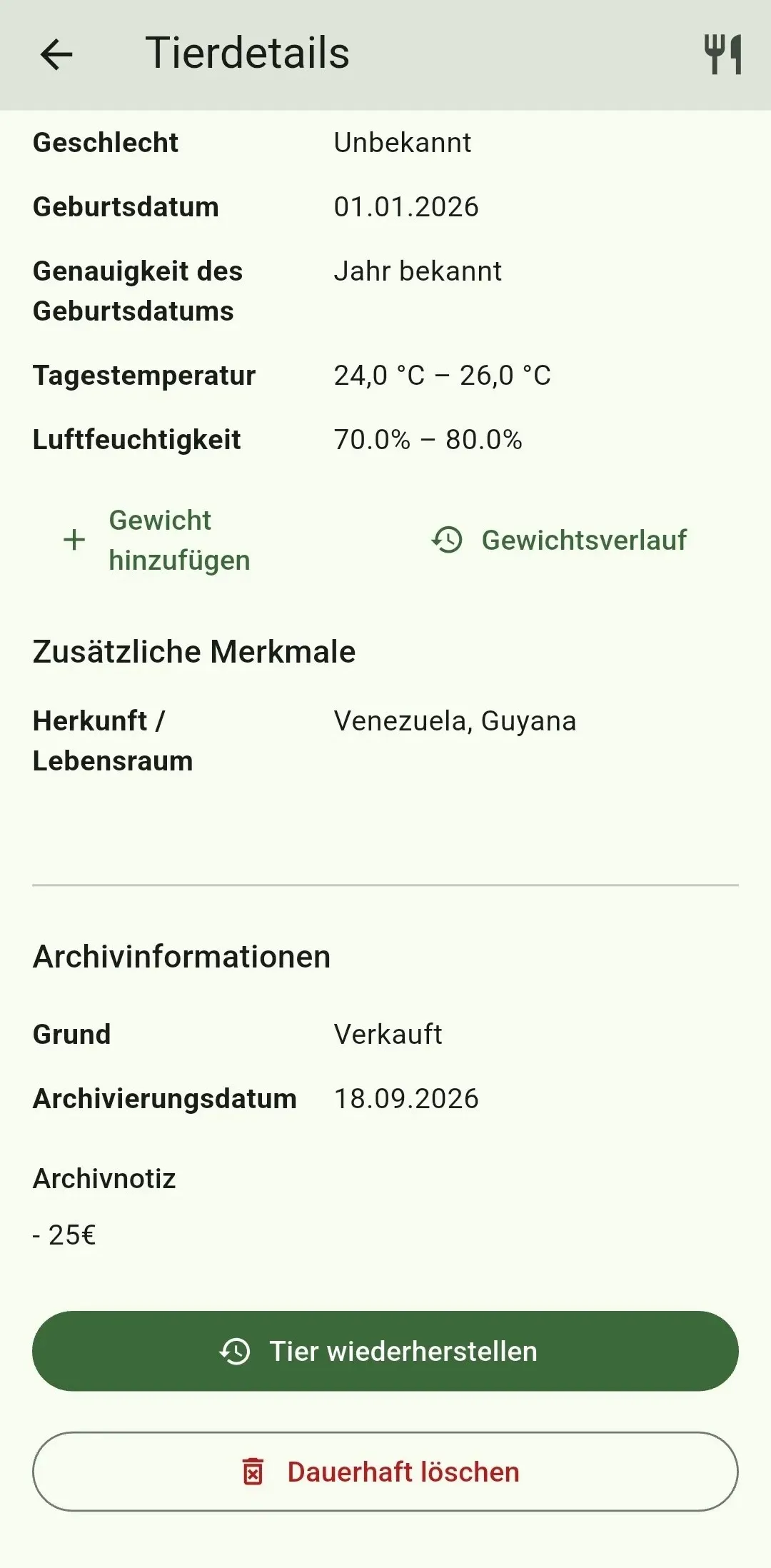
Long-press or right-click a Box or Animal to open its context menu. Active records can be renamed, edited, duplicated and archived; Animals can start a Feeding directly. Archived records can be restored from the menu. Permanent deletion is available only in archived details. An exclamation mark on the Animals tab shows a due Feeding.
View pictures and due feedings
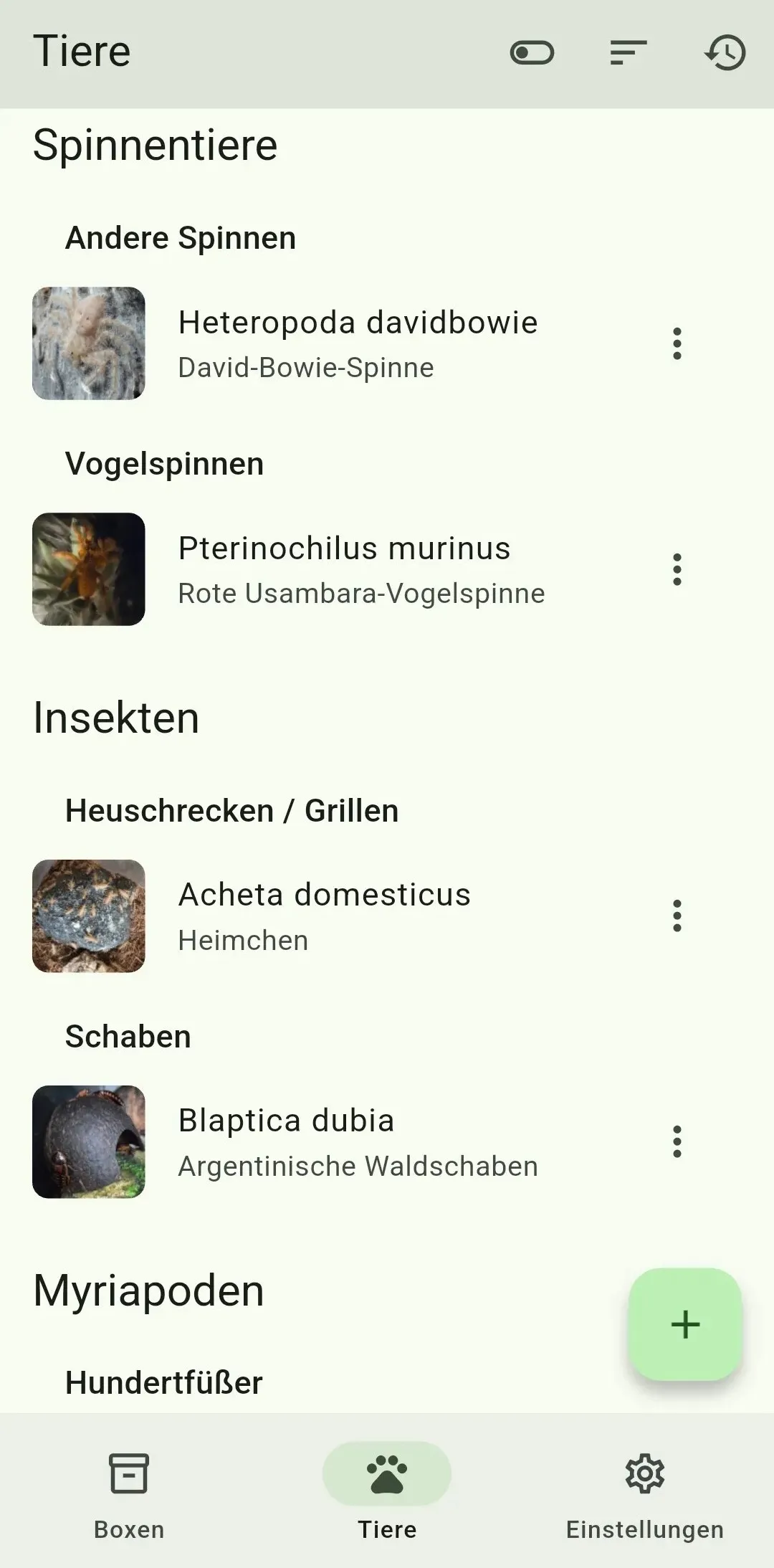
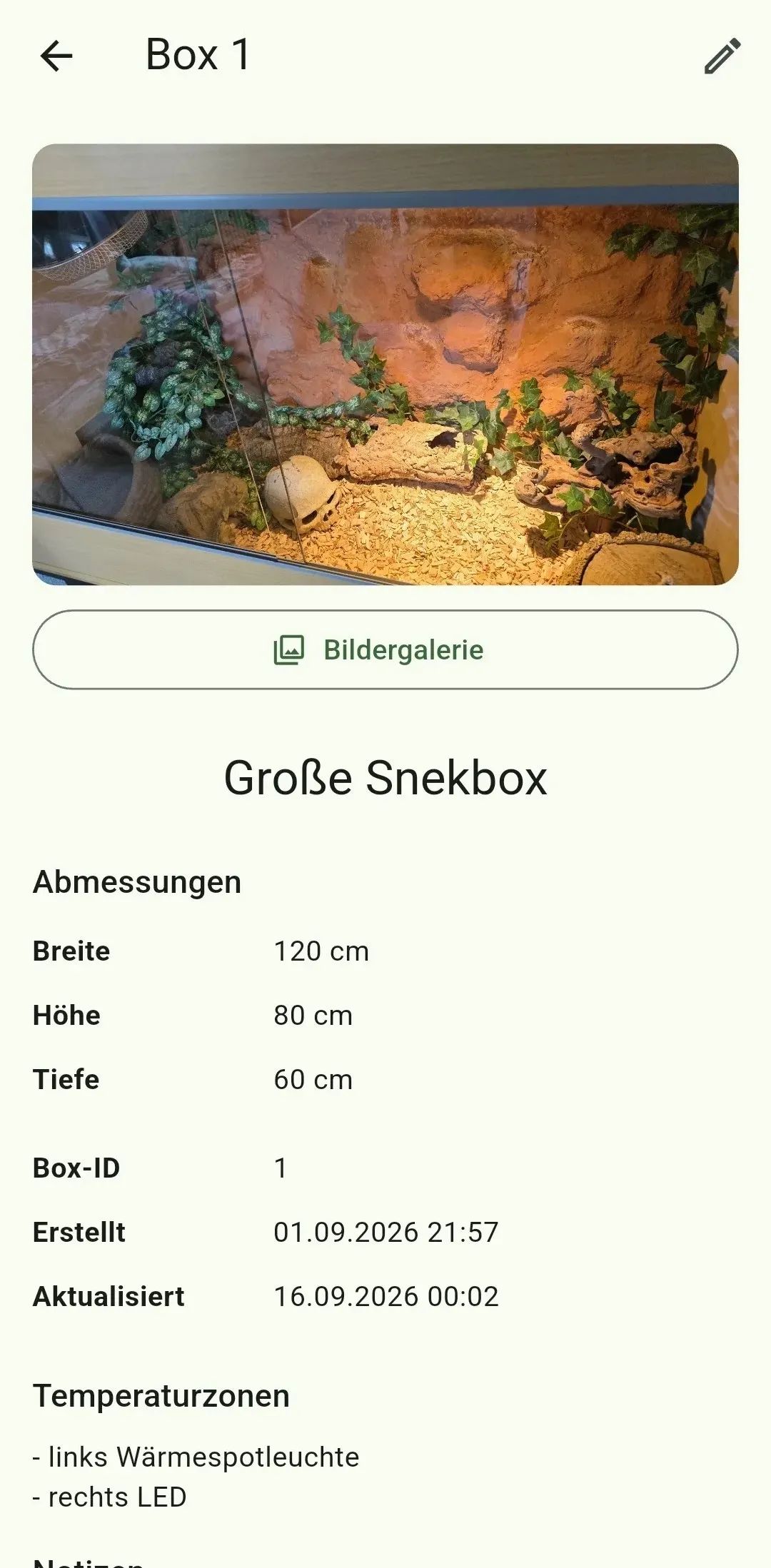
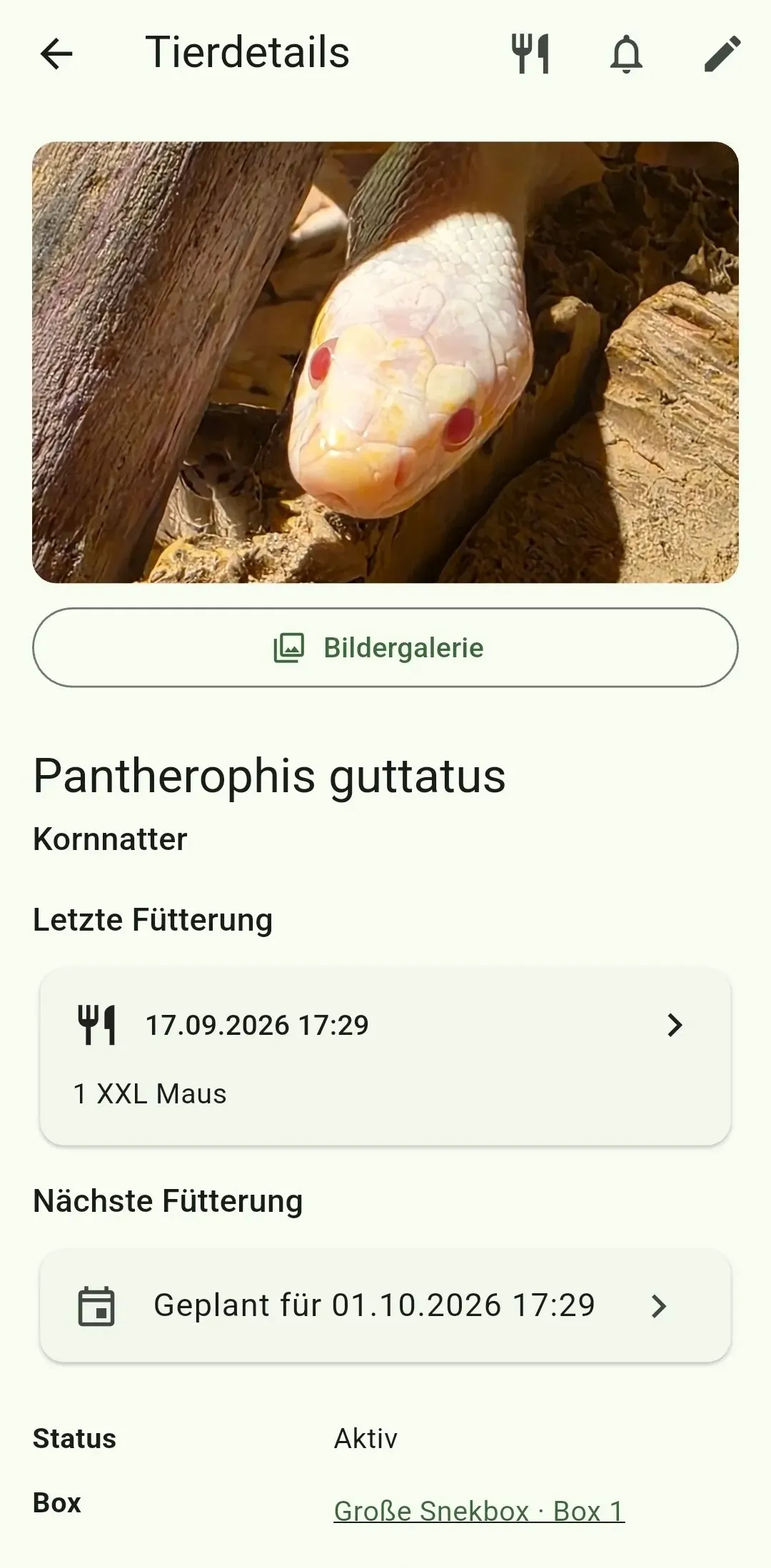
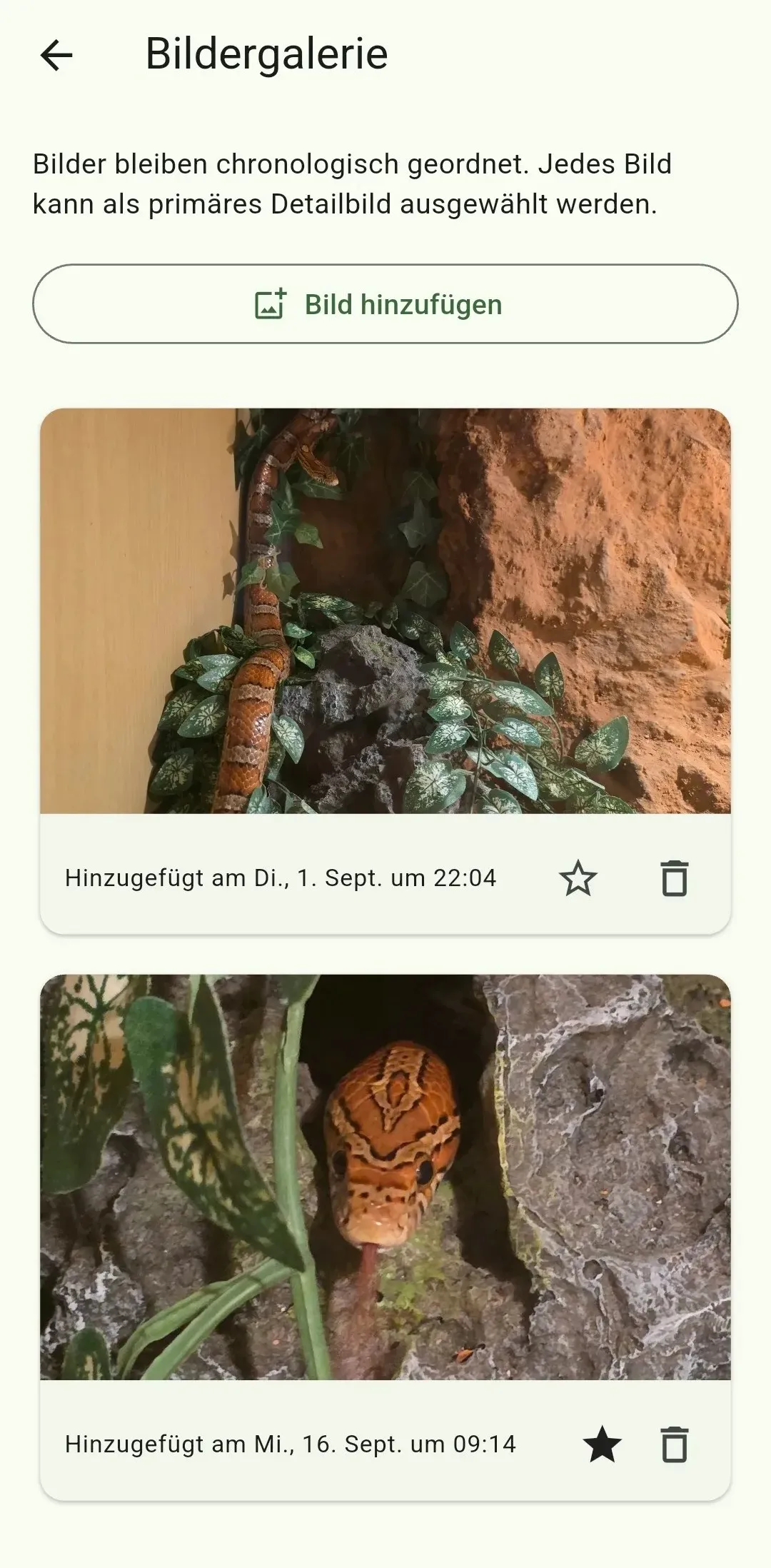
Tap an enclosure or animal primary picture or gallery thumbnail to open the zoomable full-screen viewer. The overview reuses loaded pictures while scrolling. Opening it again, returning from details or choosing Reload renews the picture snapshot. Collapse or expand the due-feeding group in the Animal Overview; its count and warning marker stay visible.
Choose presentation and overview controls
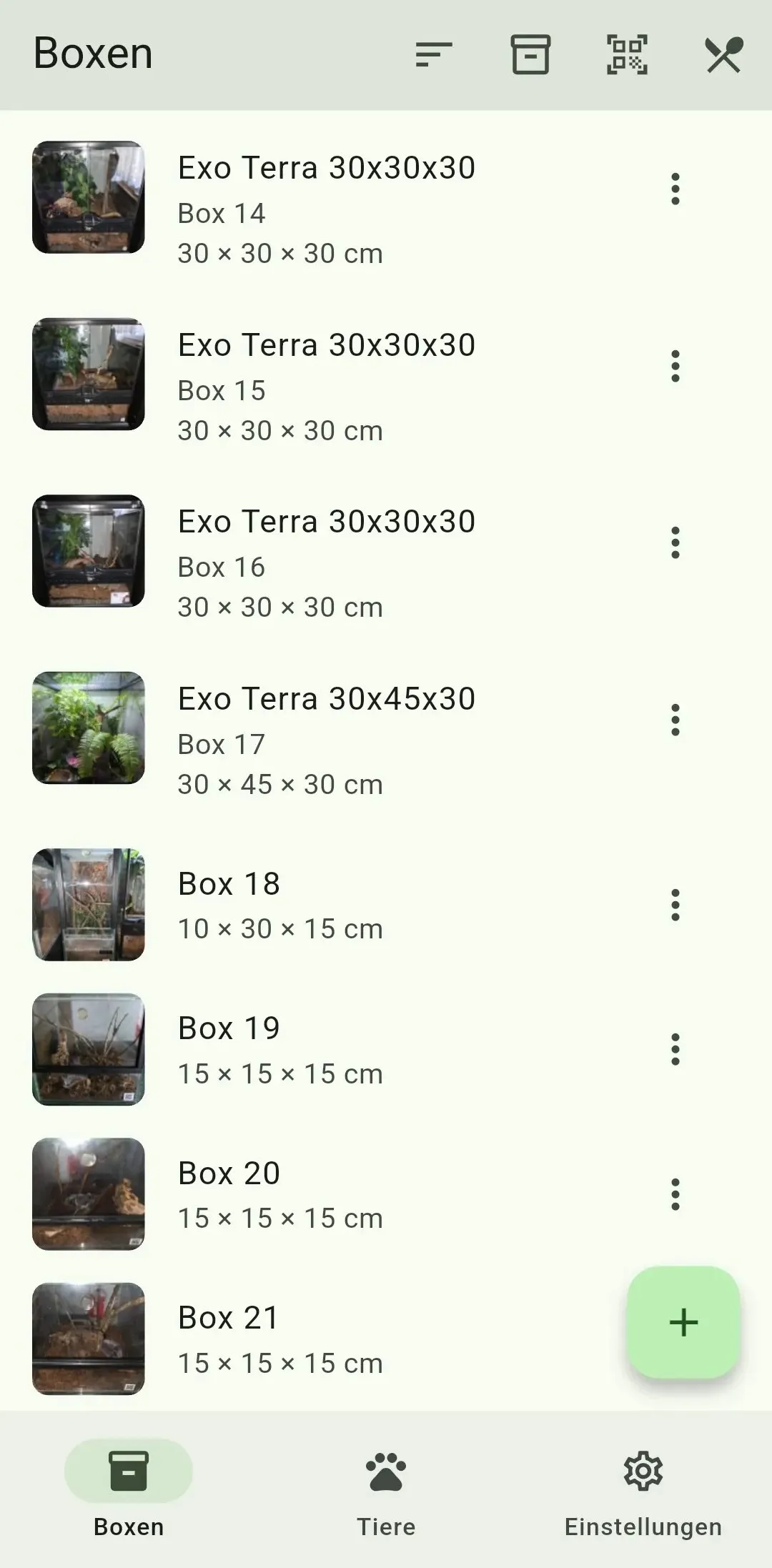
In Settings, Show next feeding controls the next reminder that is still in the future; due reminders remain visible. Big Picture Mode immediately below it applies to Boxes, Animals and their archives and stays saved in this browser. Sorting and category grouping are selected on the relevant overview. Actions share the same top toolbar as the standalone app; Reload is the additional rightmost button.
Return to the previous view
Use the in-app back arrow or the browser/system Back action to leave a detail, history page or QR scanner. On Android, the edge-back gesture returns within Shared Care; closing the scanner releases the camera. Back from the main view follows normal browser behavior.
Manage server accounts
Administrators open Settings → Server → Manage accounts to add users, edit names and roles, reset passwords, deactivate or reactivate accounts and confirm permanent removal. Changes sign the affected user out on all devices. The last active administrator cannot be demoted, deactivated or removed. Removing an account preserves the collection and past audit entries.
Local accountability
The operator's server records who changed shared collection data or accounts, when, and which records were affected. Notes, images and credentials are not copied into this audit log. Entries remain for 365 days, including after account removal, and survive portable backup restore.
Review audit history
Administrators open Settings → Shared server → Audit → View recent events. History shows the actor, local time, action and affected record ID, newest first. Filter by date range, actor name or action and use Previous/Next to change pages. Refresh returns to the latest events. Caregiver accounts cannot open this history. An empty history or a filter without matches displays an explicit empty state.
Export Box QR codes
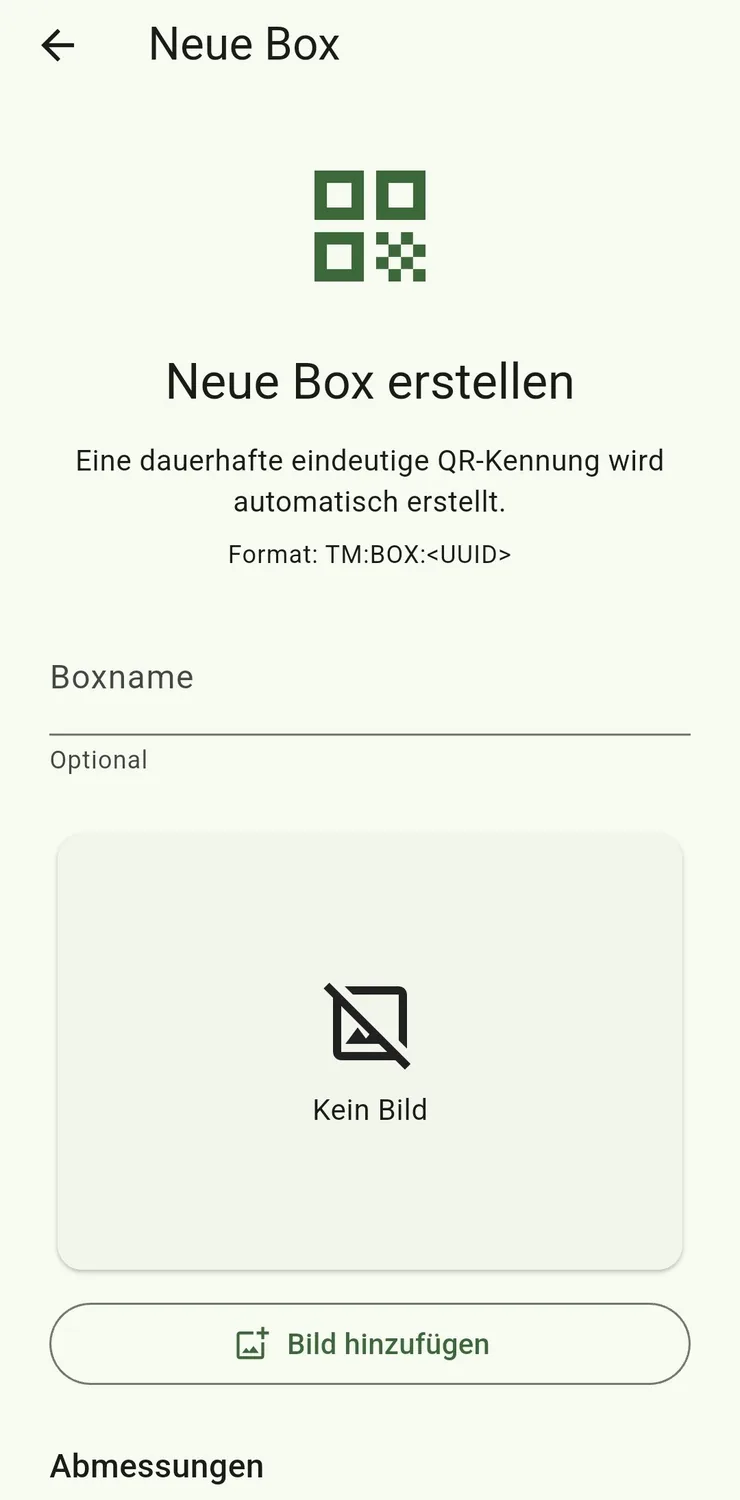
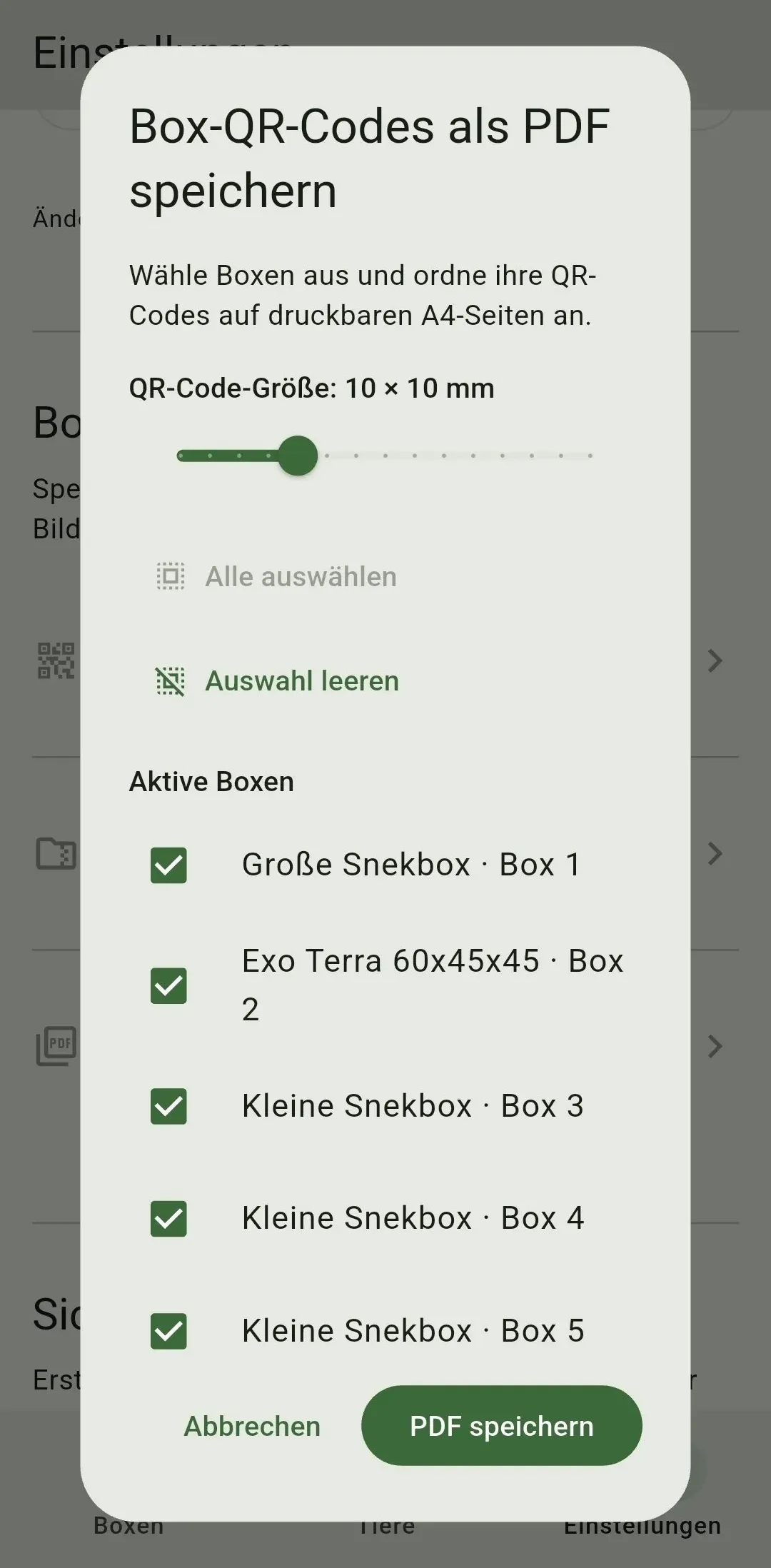
In Settings → Box QR codes, select active and archived Boxes to save individual PNG files, a ZIP or an A4 PDF. A checklist opens before every export; the PDF offers a 6–20 mm code-size slider. Files are generated directly in the browser.
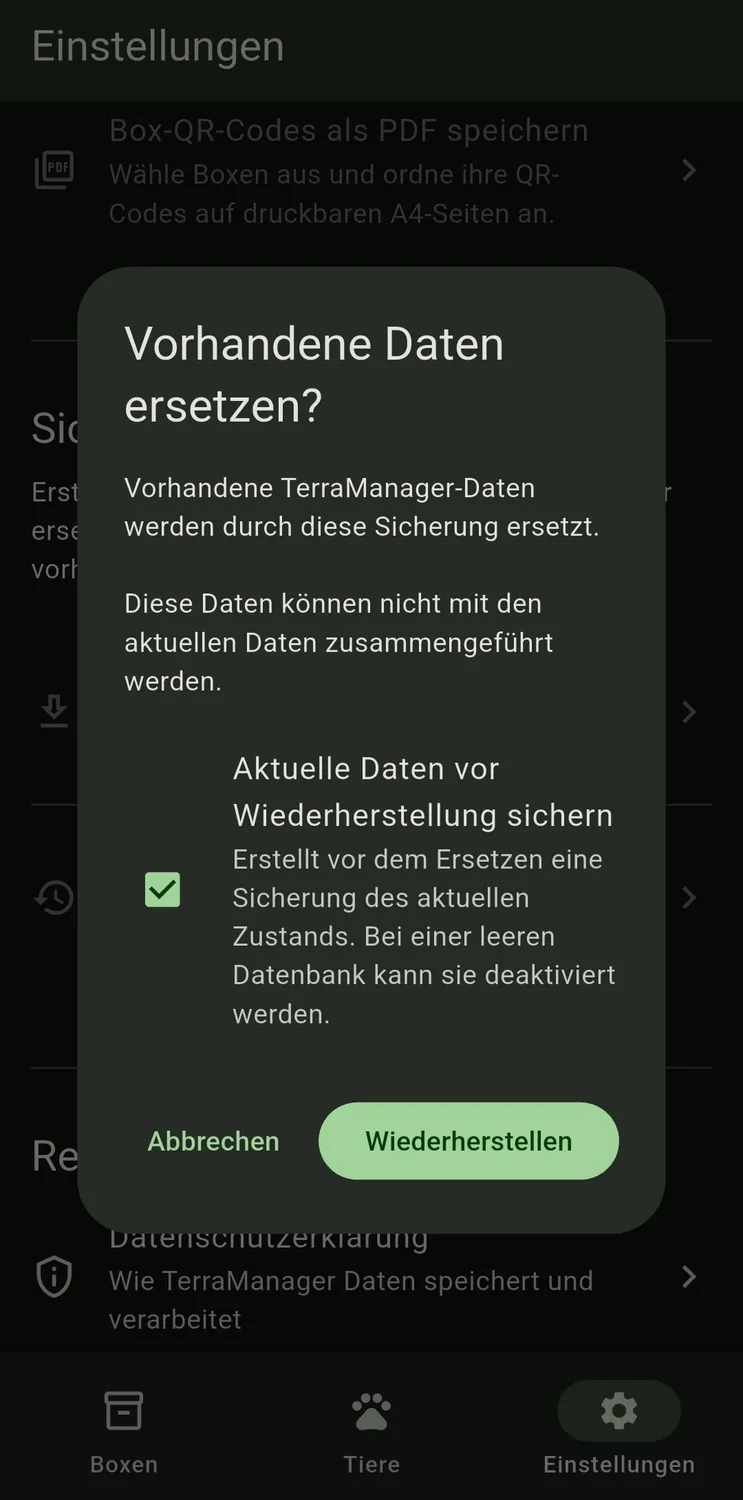
A portable Shared Care backup contains the collection but not server accounts. Full server recovery also requires a backup of both databases in the server data directory. Native Android mode stays standalone and needs no additional network permission.